> ## Documentation Index
> Fetch the complete documentation index at: https://docs.baseten.co/llms.txt
> Use this file to discover all available pages before exploring further.
# Krea 2 Turbo
> Krea 2 Turbo is Krea's 12B flow-matching image generation model: a single-stream MMDiT backbone paired with a Qwen3-VL text encoder and the Qwen-Image VAE.
Krea 2 Turbo is Krea's 12B flow-matching image generation model: a single-stream MMDiT backbone paired with a Qwen3-VL text encoder and the Qwen-Image VAE. The Turbo variant is distilled to 8 denoising steps with classifier-free guidance (CFG) disabled, generating a 1024px image in roughly 1.5 to 2 seconds and a 2048px image in 6 to 8 seconds on an H100, with native output resolutions from 1024 to 2048. For example prompts and prompting techniques, see the [Krea 2 prompting guide](https://github.com/krea-ai/krea-2/blob/main/docs/prompting.md). The weights ship under the Krea 2 Community License, which requires an [Enterprise License from Krea](https://huggingface.co/krea/Krea-2-Turbo) for commercial use by companies over \$1M in annual revenue.
## Setup
Sign in to Baseten with Truss, then install the client library for the tab you'll use: `requests` for the Python tab, or the OpenAI SDK for the OpenAI tab.
**Sign in to Baseten**
```sh theme={"system"}
uvx truss login --browser
```
**Install requests**
```sh theme={"system"}
uv pip install requests
```
**Install the OpenAI SDK**
```sh theme={"system"}
uv pip install openai
```
This preset serves Krea 2 Turbo on a single H100, with the full bfloat16 weights loaded in GPU memory and the SGLang diffusion stack's 8-step distilled sampling for fast image generation.
H100
SGLang 1.3
## Write the config
Create and move into the project directory:
```sh theme={"system"}
mkdir krea-2-turbo-lossy && cd krea-2-turbo-lossy
```
Then create a file named `config.yaml` and paste the following:
```yaml config.yaml theme={"system"}
model_name: "model:krea-2-turbo preset:lossy"
base_image:
image: baseten/sglang-diffusion-h100:v1.3
weights:
- source: hf://krea/Krea-2-Turbo
mount_location: /app/model_cache/krea-2-turbo
auth_secret_name: hf_access_token
docker_server:
start_command: /app/start_sglang.sh
readiness_endpoint: /health_generate
liveness_endpoint: /health_generate
predict_endpoint: /v1/images/generations
server_port: 8000
model_metadata:
output_media:
- json_path: "data[*].b64_json"
media_type: "image/png"
encoding: "base64"
label: "Generated Image"
visual_gen:
extra_sglang_args:
enable_fp8: "0"
enable_fp4_dit: "0"
enable_cache_dit: "0"
dit_cpu_offload: "false"
text_encoder_cpu_offload: "false"
image_encoder_cpu_offload: "false"
vae_cpu_offload: "false"
trust_remote_code: "false"
b10_cpu_memory_saving: "0"
num_gpus: "1"
warmup_resolutions: "1024x1024 2048x2048"
lora_path: ""
example_model_input:
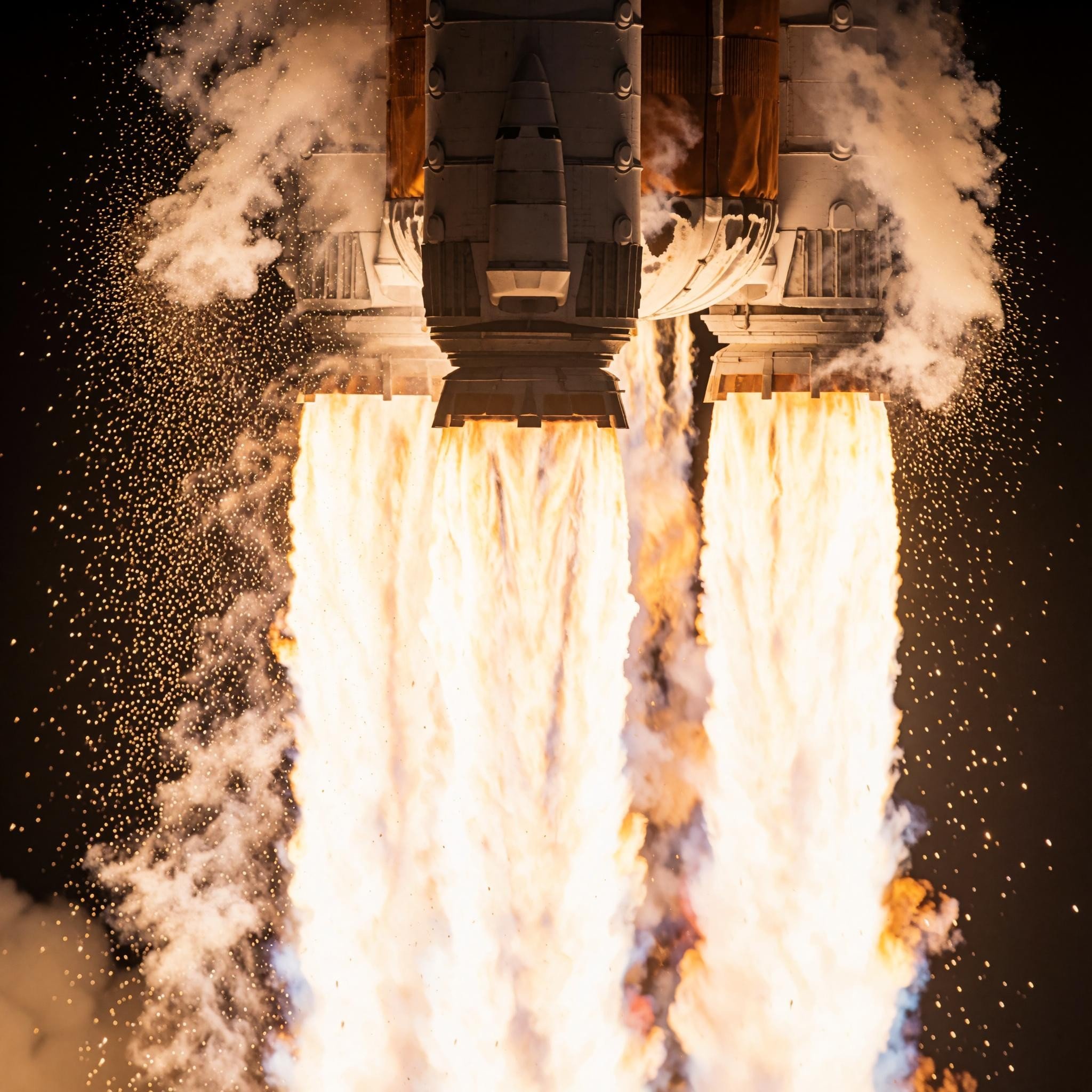
prompt: "immense rocket launch exhaust as seen from extremely close up"
n: 1
size: "1024x1024"
response_format: "b64_json"
resources:
accelerator: H100
use_gpu: true
secrets:
hf_access_token: null
runtime:
health_checks:
startup_threshold_seconds: 1200
restart_threshold_seconds: 300
stop_traffic_threshold_seconds: 300
```
This deployment loads the 34 GB bfloat16 checkpoint of [krea/Krea-2-Turbo](https://huggingface.co/krea/Krea-2-Turbo) on a single H100 and serves it with the SGLang diffusion stack. The server exposes an OpenAI-compatible images API at `/v1/images/generations` that returns base64-encoded images.
## Deploy
Push the config to Baseten:
```sh theme={"system"}
uvx truss push
```
You should see output similar to:
```output theme={"system"}
✨ Model krea-2-turbo-lossy was successfully pushed ✨
Model ID: abc1d2ef
Deployment ID: xyz123
Endpoint: model-abc1d2ef.api.baseten.co
Logs: https://app.baseten.co/models/abc1d2ef/logs/xyz123
```
`truss push` prints your **model ID** (`abc1d2ef` in the example). The examples below use it wherever you see `{model_id}`, and read your API key from the `BASETEN_API_KEY` environment variable.
## Call the model
Use the `/v1/images/generations` endpoint to generate your model's images.
The deployment returns the generated image as base64-encoded bytes. Decode the response to write the image to disk. The `size` parameter sets the output resolution in pixels.
```python main.py theme={"system"}
import base64
import os
import requests
response = requests.post(
"https://model-{model_id}.api.baseten.co/environments/production/sync/v1/images/generations",
headers={"Authorization": f"Bearer {os.environ['BASETEN_API_KEY']}"},
json={
"prompt": "immense rocket launch exhaust as seen from extremely close up",
"size": "1024x1024",
"response_format": "b64_json",
},
)
image_b64 = response.json()["data"][0]["b64_json"]
with open("output.png", "wb") as f:
f.write(base64.b64decode(image_b64))
```
```python main.py theme={"system"}
import base64
import os
from openai import OpenAI
client = OpenAI(
api_key=os.environ["BASETEN_API_KEY"],
base_url="https://model-{model_id}.api.baseten.co/environments/production/sync/v1",
)
image = client.images.generate(
prompt="immense rocket launch exhaust as seen from extremely close up",
size="1024x1024",
response_format="b64_json",
)
with open("output.png", "wb") as f:
f.write(base64.b64decode(image.data[0].b64_json))
```
```sh theme={"system"}
curl -s https://model-{model_id}.api.baseten.co/environments/production/sync/v1/images/generations \
-H "Content-Type: application/json" \
-H "Authorization: Bearer $BASETEN_API_KEY" \
-d '{"prompt": "immense rocket launch exhaust as seen from extremely close up", "size": "1024x1024", "response_format": "b64_json"}' \
| jq -r '.data[0].b64_json' | base64 --decode > output.png
```
 ## Next steps
Endpoint anatomy, authentication, and sync versus async inference
Scale replicas with traffic, including scale to zero
Example prompts and prompting techniques from the Krea team
## Next steps
Endpoint anatomy, authentication, and sync versus async inference
Scale replicas with traffic, including scale to zero
Example prompts and prompting techniques from the Krea team