> ## Documentation Index
> Fetch the complete documentation index at: https://docs.baseten.co/llms.txt
> Use this file to discover all available pages before exploring further.
# Connect your coding agent
> Install the Baseten skill and MCP servers so your agent can operate your Baseten workspace and search these docs.
This page installs the skill and MCP servers so an agent can operate your Baseten workspace and search these docs.
To point Claude Code, Codex CLI, Pi, Droid, or OpenCode at Model APIs, see [Coding agents](/inference/model-apis/coding-agents).
Install the Baseten skill and two MCP servers. The skill teaches the agent how to use them.
* `baseten` (`https://api.baseten.co/mcp`) operates your Baseten workspace. The agent can list and manage models, deployments, environments, training jobs, secrets, and chains. This server requires a management API key.
* `baseten_docs` (`https://docs.baseten.co/mcp`) searches these docs for up to date information.
You need Node 18+.
## Install
**To install the skill and MCP servers**:
1. Create a dedicated key with management permissions in your [API key settings](https://app.baseten.co/settings/api_keys). A dedicated key lets you revoke agent access without affecting inference or other tools.
2. Set it in your shell so the installer can read it:
```bash macOS / Linux theme={"system"}
export BASETEN_MCP_KEY=...
```
```powershell Windows PowerShell theme={"system"}
$env:BASETEN_MCP_KEY = "..."
```
```cmd Windows cmd theme={"system"}
set BASETEN_MCP_KEY=...
```
To persist the key, add the line to your shell profile (`~/.zshrc` or `~/.bashrc`). On Windows, run `setx BASETEN_MCP_KEY "..."`.
3. Run these commands in a shell that exports `BASETEN_MCP_KEY`. `-g` installs for every detected tool. `-y` skips prompts:
```bash macOS / Linux theme={"system"}
npx skills add basetenlabs/baseten-skills -g -y
npx add-mcp https://api.baseten.co/mcp -g -y --header "Authorization: Bearer ${BASETEN_MCP_KEY}"
npx add-mcp https://docs.baseten.co/mcp -n baseten_docs -g -y
```
```powershell Windows PowerShell theme={"system"}
npx skills add basetenlabs/baseten-skills -g -y
npx add-mcp https://api.baseten.co/mcp -g -y --header "Authorization: Bearer $env:BASETEN_MCP_KEY"
npx add-mcp https://docs.baseten.co/mcp -n baseten_docs -g -y
```
```cmd Windows cmd theme={"system"}
npx skills add basetenlabs/baseten-skills -g -y
npx add-mcp https://api.baseten.co/mcp -g -y --header "Authorization: Bearer %BASETEN_MCP_KEY%"
npx add-mcp https://docs.baseten.co/mcp -n baseten_docs -g -y
```
4. Restart your agent.
To have your agent run the install instead, paste this prompt into it. Don't print the key:
```md theme={"system"}
Install the Baseten agent toolkit following the instructions at github.com/basetenlabs/baseten-skills, all global (-g -y):
the `baseten` skill, the backend MCP https://api.baseten.co/mcp with header "Authorization: Bearer $BASETEN_MCP_KEY", and the docs MCP https://docs.baseten.co/mcp.
Run the commands in a shell that exports BASETEN_MCP_KEY; don't print the key. Then tell me how to verify and whether to restart.
```
**To confirm the servers connected**:
Run `/mcp`. You should see:
```output theme={"system"}
baseten ✔ connected
baseten_docs ✔ connected
```
If Claude Code prompts before reading skill files, add this to `~/.claude/settings.json`:
```json theme={"system"}
{
"permissions": {
"allow": ["Read(~/.claude/skills/**)"]
}
}
```
**To confirm the servers connected**:
Open MCP settings and confirm both `baseten` and `baseten_docs` show as connected.
Ask the agent to list the models in your workspace, or invoke the skill with `/baseten`.
Each MCP instance is scoped to one workspace by its API key. To work with multiple workspaces, install additional instances under different names with different keys.
## Configure a specific agent
Use this when auto-detect doesn't cover your tool. Add the MCP servers to its config and install the skill with `npx skills add basetenlabs/baseten-skills`. `baseten_docs` needs no auth, so omit its header for a docs-only setup.
**To add the MCP servers by hand**:
Add this to `mcp.json`:
```json mcp.json theme={"system"}
{
"mcpServers": {
"baseten": {
"type": "http",
"url": "https://api.baseten.co/mcp",
"headers": { "Authorization": "Bearer ${BASETEN_MCP_KEY}" }
},
"baseten_docs": { "type": "http", "url": "https://docs.baseten.co/mcp" }
}
}
```
**To add the MCP servers by hand**:
Add this to `.vscode/mcp.json`:
```json .vscode/mcp.json theme={"system"}
{
"servers": {
"baseten": {
"type": "http",
"url": "https://api.baseten.co/mcp",
"headers": { "Authorization": "Bearer ${BASETEN_MCP_KEY}" }
},
"baseten_docs": { "type": "http", "url": "https://docs.baseten.co/mcp" }
}
}
```
**To add the MCP servers by hand**:
1. Install the skill:
```bash theme={"system"}
npx skills add basetenlabs/baseten-skills
```
2. Add the backend MCP server:
```bash theme={"system"}
claude mcp add --transport http baseten https://api.baseten.co/mcp --header "Authorization: Bearer ${BASETEN_MCP_KEY}"
```
3. Add the docs MCP server:
```bash theme={"system"}
claude mcp add --transport http baseten_docs https://docs.baseten.co/mcp
```
`npx add-mcp` and `npx skills add` also detect Codex, Antigravity, Goose, Windsurf, and other supported agents. For GUI clients like Claude Desktop, add the server URL under their connector settings. Any MCP-compatible tool works with the URLs above.
## Next steps
Call Model APIs from Pi, Droid, or OpenCode, or install Baseten Switch for Claude Code, Codex CLI, or Pi.
Package a model with Truss and deploy it on dedicated GPUs.
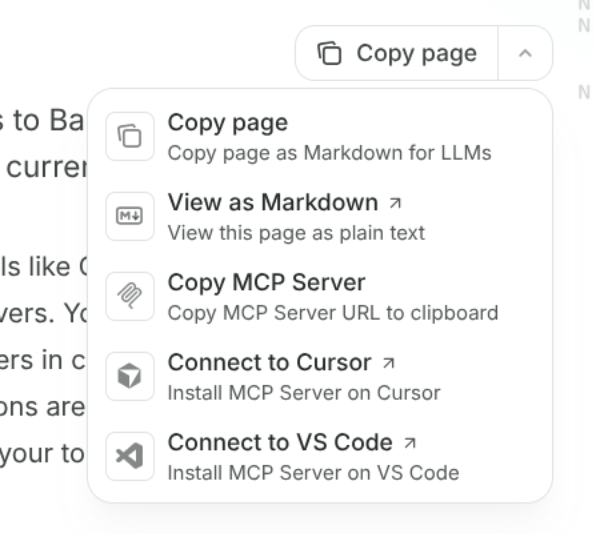
Append `.md` to any docs URL for clean Markdown, or use [llms.txt](https://docs.baseten.co/llms.txt) (page index) and [llms-full.txt](https://docs.baseten.co/llms-full.txt). The **Copy page** button at the top-right of any page copies it as Markdown or opens it as plain text:
 These docs also auto-host a lightweight single-file skill at [docs.baseten.co/skill.md](https://docs.baseten.co/skill.md) (`npx skills add https://docs.baseten.co`). Use it only where you can't install the `baseten` skill from the repo.